Difference between revisions of "Custom F&R Codes"
From Kiosk Documentations
(→How to Create Custom F&R Codes) |
(→How to Create Custom F&R Codes) |
||
| Line 6: | Line 6: | ||
== How to Create Custom F&R Codes == | == How to Create Custom F&R Codes == | ||
#Hover over Codebook in the Navigation Panel and click on '''Findings and Recommendations Codes''' | #Hover over Codebook in the Navigation Panel and click on '''Findings and Recommendations Codes''' | ||
| − | #Click on the F&R tab | + | #Click on the '''F&R''' tab |
#Click on [[File:Newentry.JPG]] on the bottom left, then input your information in the corresponding text boxes. | #Click on [[File:Newentry.JPG]] on the bottom left, then input your information in the corresponding text boxes. | ||
*By default, the Findings are combined with the Recommendations. If you wish to separate them into categories, click on the drop down menu at the top and select '''Modular F&R'''. | *By default, the Findings are combined with the Recommendations. If you wish to separate them into categories, click on the drop down menu at the top and select '''Modular F&R'''. | ||
Revision as of 22:55, 12 May 2016

Users can customize and input their own F&R codes to use in the termite reports.
How to Create Custom F&R Codes
- Hover over Codebook in the Navigation Panel and click on Findings and Recommendations Codes
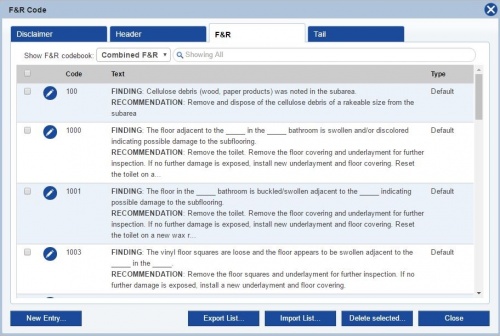
- Click on the F&R tab
- Click on
 on the bottom left, then input your information in the corresponding text boxes.

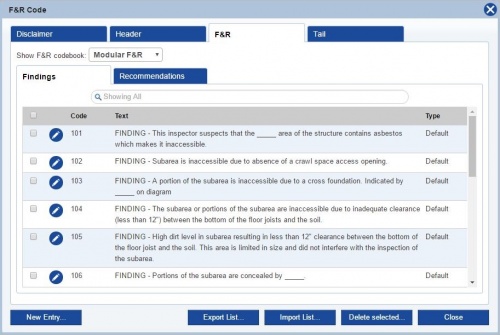
- By default, the Findings are combined with the Recommendations. If you wish to separate them into categories, click on the drop down menu at the top and select Modular F&R.
- Alternatively you can change the default in Options in the General section.


- To edit a code, click on the
 icon.
icon. - When you are finished, remember to click


Improving for importing your Finding & Recommendation
In our software “TermiteKiosk” select Code Book click on Finding & & Recommendation Codes.

Next, select “Import List” then download Template Note: template is in Excel format.

Example of Template

At this point you simply copy your Finding/Recommendations on to the template.

You may want to copy 20 to 30 codes at a time be sure to click on "Wrap Text" in Excel toolbar.

Example of Template when codes added

Wants you saved the file on your desktop in "TermiteKiosk" select import list.Choose file to upload into software.
Note:for your codes you will se on the right "custom."
